📘 ATA Photobooths Troubleshooting Guide
🔍 Symptoms
- Camera disconnects intermittently
- iPad stops charging
- Camera doesn’t power on
⚙️ Possible Causes
- Unstable or loose cable connection
- Device temporarily discontinues connection to camera
- Insufficient power output from power adapter
- USB hub is unreliable or underpowered
🧰 Step-by-Step Resolution
-
Check Physical Connections
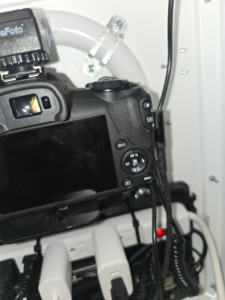
- Disconnect and reconnect the cable from the camera to the USB hub.
- Ensure all cables are seated firmly — no loose connections or bent pins.
- If you’re using an extension, test with a shorter direct connection.
Before and after unplugging the camera connection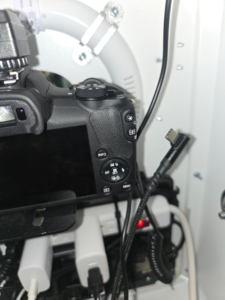
Before
After Before and after unplugging USB hub connection to camera
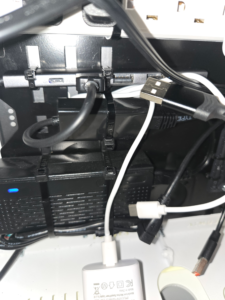
Before
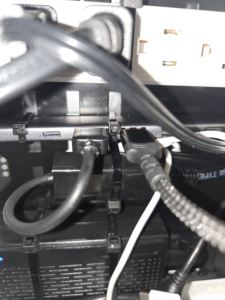
After -
Restart Devices
- Restart both the iPad and the camera.
- After restarting, open Photobooth software to verify that the camera is being connected.
To restart iPad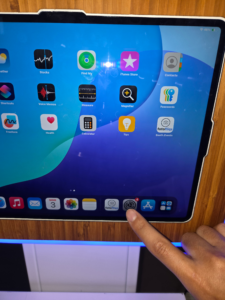
Open Settings 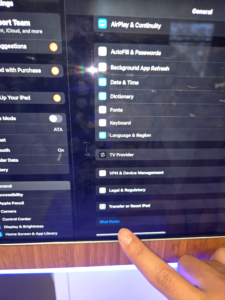
Go to General → Shut Down
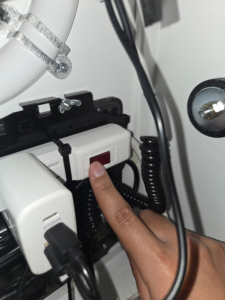
Power cycle charger if needed -
Verify USB Hub Power
Ensure your USB hub is receiving power from at least a 30W power adapter. Avoid using unpowered or low-wattage hubs — this can cause unstable data transfer.
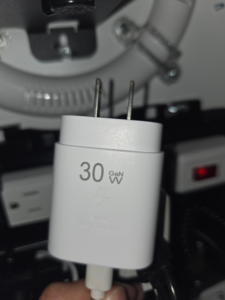
Powered USB hub -
Inspect the Cable
Test with a different USB-C or Lightning cable. Damaged or loose-fit cables can cause unstable connections.
-
Observe the Camera Indicator
When turning the camera off and on, check for the PC icon on the camera screen — this confirms proper USB communication. If no icon appears, the camera may not be detected by the iPad.
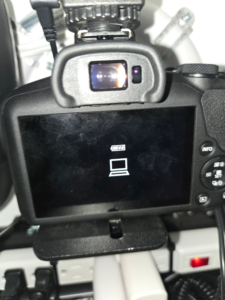
PC icon shown


🪫 Power Supply Tips
- Always use certified adapters and cables that meet Apple’s or the camera manufacturer’s standards.
- Avoid daisy-chaining multiple accessories on the same hub unless it’s a powered hub.
🚨 Escalation Notes
If the issue persists after all steps:
- Take photos of your cable connections and USB hub setup.
- Write a short note describing what happens when reconnecting.
- Include any error messages seen on the iPad.
📩 Email Support:
[email protected]
[email protected]