![[HERO] Quick Tip: The](https://cdn.marblism.com/vu4U2Jg7gNW.webp)
Reliability is the foundation of a successful photo booth business. You can have the most expensive lighting and the highest resolution camera, but if your guests cannot receive their photos, the experience feels broken. Most photo booth owners rely on venue WiFi to handle the heavy lifting of sending texts, emails, and gallery uploads. This is often a mistake.
Venue WiFi is notoriously unpredictable. It may work perfectly during your setup at 4:00 PM when the room is empty. However, once 200 guests arrive and connect their own devices, the network congestion increases. High-traffic events often lead to DHCP lease exhaustion or simple signal interference that knocks your booth offline.
The “Hotspot Handshake” is a simple, proactive technique to ensure your booth remains functional regardless of the venue’s network quality. It involves pre-pairing your primary mobile hotspot with your photo booth hardware before you arrive on-site. This creates a “failover” system that allows you to switch connections in seconds without entering passwords or navigating complex menus while a line of guests waits.
Why Venue WiFi Fails During Events
Most event spaces, from rustic barns to hotel ballrooms, are not designed to handle hundreds of concurrent connections on a single consumer-grade router. When a crowd enters the room, every smartphone begins searching for a signal. If the venue offers “Free Guest WiFi,” the router is immediately slammed with requests for data.
Furthermore, many venues use “Captive Portals”: those login screens that ask for an email address or room number. These are notoriously difficult for photo booth software and iPad-based systems to navigate. Even if you get connected, these portals often time out after an hour, requiring a manual re-login. If this happens in the middle of a busy reception, your upload queue will stall, and guests will walk away without their digital copies.
By implementing the Hotspot Handshake, you bypass these infrastructure hurdles entirely. You take control of your own data stream, ensuring that your Lumia M Pro or iPad booth stays online.
Setting Up the Hotspot Handshake
The goal is to make the transition between networks invisible to the guest. You should perform these steps in your office or studio during your pre-event prep.
- Activate your mobile hotspot. Use the phone or dedicated hotspot device you plan to bring to the event.
- Connect your booth hardware. Open the WiFi settings on your photo booth iPad or laptop. Select your hotspot and enter the password.
- Confirm the “Auto-Join” setting. Ensure that “Auto-Join” is toggled on for your hotspot.
- Test the handoff. Connect the booth to your home or office WiFi first. Then, turn off the office WiFi or move out of range. Observe how quickly the booth switches to your hotspot.
- Forget the Venue WiFi. If you have previously connected to this venue’s network, consider “forgetting” it so the booth doesn’t accidentally prioritize a weak venue signal over your strong hotspot signal.
This pre-pairing process ensures that the “handshake” is already established. If the venue signal drops, your device recognizes your hotspot as a trusted, known network and connects immediately.
The Technical Advantage of a Personal Hotspot
Using a personal hotspot is not just about convenience; it is about technical stability. Most modern smartphones support 5G or high-speed LTE, which often outperforms shared venue WiFi in terms of upload speed. For photo booths, upload speed is the most critical metric. Sending a 2MB GIF or a 5MB high-res photo requires a stable upstream.
If you are using an Allure Photo Booth, the software relies on a consistent heartbeat to the cloud to process sharing requests. A momentary drop in connection can cause the software to hang or error out. When you use your own hotspot, you eliminate the middleman. You are not competing with 200 guests browsing Instagram; you are on your own dedicated lane.
Managing the Switch On-Site
When you arrive at the venue, you may still choose to try their WiFi first to save on your own data plan. However, keep your phone’s hotspot active and “discoverable” in your pocket or tucked inside the booth shell.
If you notice the “Sending…” spinning wheel taking longer than five seconds, do not wait for it to fail.
- Open the connection settings.
- Toggle the WiFi off and back on.
- The booth will automatically grab the “Handshake” you established earlier with your phone.
This process takes less than ten seconds. In the eyes of the guest, there was a minor lag. In reality, you just saved the event’s digital experience. If you are just getting started with booth operations, this habit will save you more stress than almost any other technical tip.
Equipment and Signal Placement
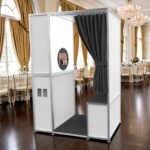
Signal strength is affected by physical barriers. If you are using a metal-enclosed booth shell, the internal iPad or laptop might struggle to see a hotspot that is located across the room.
For the best results, keep your hotspot device:
- Inside the booth shell (if there is a shelf or mount).
- On your person, standing within five feet of the booth.
- Elevated, rather than sitting on the floor behind a table.
If you are using a Roamer Stand, your hotspot needs to be on your person or integrated into the roamer setup. Since the roamer moves through the crowd, it is even more susceptible to losing venue WiFi. Having the hotspot move with the unit is the only way to guarantee 100% uptime.

Data Considerations for Photo Booth Owners
While the Hotspot Handshake provides reliability, you must be aware of your data usage. High-volume events can consume significant data, especially if you are uploading videos or high-resolution prints.
- Check your plan. Ensure you have a “Personal Hotspot” allowance on your cellular plan. Many “unlimited” plans throttle hotspot speeds after a certain threshold (e.g., 15GB or 30GB).
- Monitor background apps. Ensure your photo booth laptop or iPad is not downloading system updates or syncing large iCloud photo libraries in the background. Disable automatic updates before the event starts.
- Queueing functionality. Most professional software allows you to queue uploads. If your hotspot signal is weak, you can set the software to “Queue for later” and upload everything once you reach a stronger signal, but the Hotspot Handshake ensures that the initial “Handshake” for SMS delivery usually goes through.
Client Communication and Professionalism
Using your own hotspot is a mark of a professional. When a client asks, “Do you need our WiFi password?” responding with, “I bring my own dedicated professional internet to ensure your guests get their photos instantly,” adds a layer of value to your service. It shows that you have planned for contingencies.
If the venue WiFi is truly terrible, you aren’t the person complaining to the wedding coordinator about it. You are the vendor who is quietly getting the job done. This reliability leads to better reviews and more referrals.
Troubleshooting the Hotspot
Sometimes, even the Hotspot Handshake faces issues. If your booth isn’t seeing your phone:
- Toggle Airplane Mode. Turn it on and off on your phone to reset the cellular radio.
- Check “Maximize Compatibility”. On iPhones, this setting switches the hotspot from 5GHz to 2.4GHz. While 5GHz is faster, 2.4GHz has better range and is more easily detected by older booth hardware or specific iPad models.
- Stay Plugged In. Hotspots drain phone batteries rapidly. Always have your phone connected to a power bank or the booth’s internal power strip.
Summary of the Workflow
The Hotspot Handshake is about eliminating friction. By pre-pairing your devices, you ensure that you are never “hunting” for a connection while guests are waiting.
- Prep: Pair the devices at home.
- On-site: Keep the hotspot active.
- Action: Switch immediately if venue WiFi lags.
This simple technical habit ensures that your emails, texts, and social shares are delivered in real-time, maintaining the high-energy atmosphere of the event. For more business tips and equipment guides, visit our Business Tips tag.
If you encounter persistent hardware connectivity issues or need advice on the best tablets for mobile hotspots, feel free to contact us for technical support. Maintaining 100% uptime is not just a goal; it is the standard for professional event technology.