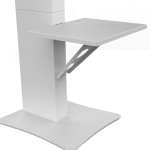
Why is my POSH booth not detecting the printer?
The printer may not be detected if the printer has an error, the USB cable is loose, the POSH column is not fully powered, or the USB data cable between the head unit and column is not connected properly.
For POSH setups, the connection path is:
Printer → USB printer cable → POSH Column → USB data cable → Head Unit (iPad)
If any part of that connection path is loose, disconnected, or faulty, the iPad may not be able to access the printer.
What should I check on the printer first?
Start by checking the printer itself.
Make sure:
- The printer is powered on.
- The printer shows ready status.
- Paper and ribbon/media are loaded correctly.
- The printer door is fully closed.
- There are no error lights or error messages.
- The printer is not out of paper or ribbon.
- The printer is connected to its own power source.
If the printer has an error, the POSH may not detect it until the printer issue is cleared.
How does the POSH connect to the printer?
The printer connects directly to the POSH column by USB. The POSH column has built-in access to the printer through its internal Printio system.
The iPad/head unit then connects to the POSH column through a USB data cable. This allows the iPad to access Printio and communicate with the printer.
The full connection path is:
Printer → USB printer cable → POSH Column → USB data cable → Head Unit (iPad)
What cable should I check if the printer is not connecting?
Check both USB connections:
- The USB cable from the printer to the POSH column.
- The USB data cable from the head unit/iPad to the POSH column.
A cable may look connected but still be slightly loose. Unplug and reconnect both cables, then wait a few seconds to see if the printer appears.
What is the correct restart order for the POSH printer connection?
Restarting in the correct order can help the POSH reconnect to the printer.
- Close the photo booth app completely.
- Turn off the printer.
- Power off the POSH column.
- Disconnect and reconnect the printer USB cable from the column.
- Disconnect and reconnect the USB data cable between the head unit and column.
- Turn the printer back on first.
- Wait until the printer is fully ready with no errors.
- Turn the POSH column back on.
- Wait for the POSH system to fully boot.
- Reopen the photo booth app and check the printer connection again.
What is ata.local:3000 used for?
ata.local:3000 is used to access the POSH internal Printio system from the iPad.
On the iPad:
- Open a web browser.
- Go to:
ata.local:3000
If this page loads, the iPad is able to reach the POSH Printio system.
If this page does not load, the iPad is not communicating with the POSH column properly.
What does it mean if ata.local:3000 does not load?
If ata.local:3000 does not load, the printer will not connect through the POSH system.
The most likely cause is a loose, faulty, or disconnected USB data cable between the head unit/iPad and the POSH column.
To fix this:
- Disconnect and reconnect the USB data cable.
- Check the USB ports on the head unit and column.
- Try replacing the USB data cable if available.
- Restart the POSH column and iPad connection.
- Open
ata.local:3000again.
What should I do if ata.local:3000 loads but the printer does not appear?
If ata.local:3000 loads, the iPad is communicating with the POSH system. Next, go to the Printio section and check whether the printer appears.
If the printer does not appear there, check:
- The USB cable from the printer to the POSH column.
- The printer power.
- Printer error lights or error messages.
- Paper and ribbon/media.
- The printer door.
- Any extension cables being used.
You can also restart the printer and POSH column, then check again.
What should I do if the printer appears in Printio but not in the photo booth app?
If the printer appears in the Printio section at ata.local:3000, the POSH system is detecting the printer correctly. The issue may be inside the photo booth app settings.
Open the photo booth app and check:
- The correct printer is selected.
- The correct print size is selected.
- The app is not set to an old or unavailable printer.
- The event is set to print.
- The print count is correct.
- The template size matches the selected print size.
If needed, remove and reselect the printer inside the app.
What should I check in the iPad Ethernet settings?
If your POSH setup uses iPad Ethernet and the printer shows disconnected, check the iPad Ethernet settings.
On the iPad:
- Open Settings.
- Tap Ethernet.
- Select the active Ethernet connection.
- Check the IP configuration.
If the IP setting is on Automatic and shows an address starting with 169.254, the iPad is not communicating correctly.
Change the setting to Manual and enter:
- IP Address:
192.168.10.99 - Subnet Mask:
255.255.255.0
Then tap Save and return to the booth app to check the printer connection again.
Why does the iPad show a 169.254 IP address?
A 169.254 IP address usually means the iPad did not receive the correct network configuration. When this happens, the iPad may not be able to communicate with Printio or the printer.
Set the Ethernet configuration to Manual and enter:
- IP Address:
192.168.10.99 - Subnet Mask:
255.255.255.0
Then save the settings and test the printer again.
Can I test the printer outside of the photo booth app?
Yes. Testing outside the booth app helps confirm whether the issue is with the printer connection or the app settings.
You can try:
- Printing from the iPad Photos app, if supported.
- Checking whether the printer appears in the available printer list.
- Using any built-in test print option available through the POSH/Printio system.
If the test print works outside the booth app, the connection is working and the issue is likely related to the booth software settings.
Why is the printer connected but nothing is printing?
There may be stuck or failed jobs in the print queue.
Try this:
- Clear or cancel any failed print jobs.
- Close and reopen the booth app.
- Send only one test print.
- Wait for that print to finish before sending more.
Avoid repeatedly pressing print, as this can stack the queue and make the printer appear delayed or unresponsive.
Can Wi-Fi cause printer connection issues?
Yes. If your setup uses wireless printing, Wi-Fi conflicts can cause connection issues.
Check that:
- The iPad is connected to the correct booth/printer network.
- The iPad did not switch to venue Wi-Fi.
- The network does not require a login or agreement page.
- The printer and iPad are on the same network if using network/AirPrint printing.
For events, the wired connection between the head unit and POSH column is typically more stable than relying on crowded venue Wi-Fi.
What is the fastest mid-event fix?
If you are in the middle of an event and need to troubleshoot quickly:
- Make sure the printer has no error lights.
- Unplug and reconnect the printer USB cable from the POSH column.
- Unplug and reconnect the USB data cable between the head unit and column.
- Restart the printer.
- Restart the POSH column.
- Open
ata.local:3000on the iPad. - If it does not load, reseat or replace the USB data cable.
- If it loads, confirm the printer appears in the Printio section.
- Reopen the booth app.
- Reselect the printer.
- Send one test print.
If the printer reconnects, continue the event and avoid changing additional settings unless the issue returns.
What information should I send to support if the printer still does not connect?
If the printer still does not appear after troubleshooting, please send:
- A photo of the printer screen or status lights.
- A photo of the POSH column connections.
- A photo of the printer-to-column USB connection.
- A photo of the head-unit-to-column USB data connection.
- A screenshot showing whether
ata.local:3000loads. - A screenshot of the printer selection page inside the booth app.
- A screenshot of the Printio section at
ata.local:3000, if accessible. - The printer model.
- The photo booth app being used, such as Booth.Events, LumaBooth, Snappic, or another software.
This helps support determine whether the issue is coming from the printer, POSH hardware, USB data connection, or app settings.