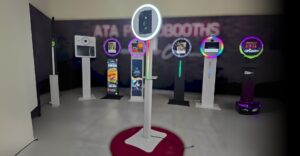
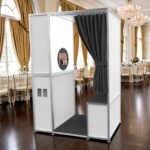
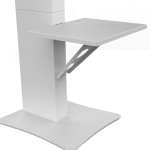
The rear device holder on Lumia Photobooths can be used with an iPad to add more functionality to the booth setup. It can be used in many helpful ways during events, including sharing, branding, promotions, lead capture, and guest instructions.
1. Use It as a Sharing Station
One of the best ways to use the rear iPad is as a dedicated sharing station. Depending on the photo booth software being used, the rear iPad can allow guests to view their photos and send them by text, email, AirDrop, QR code, or gallery link.
This helps keep the main booth screen focused on taking photos, while the rear iPad gives guests a separate place to share or download their images.
This is especially helpful at busy events where guests may need more time to send their photos after their session.
2. Display a Live Gallery or Slideshow
The rear iPad can be used to display a slideshow or gallery of photos taken during the event. This gives guests something fun to look at while they are waiting and can encourage more people to use the booth.
This can be done through the photo booth software, the Photos app, a cloud gallery, or a browser-based gallery, depending on the setup.
For best results, make sure the gallery only displays approved photos, especially for corporate events, schools, or family-friendly events.
3. Use It as a Promotional Screen
The rear iPad can also be used as a promotional display for your photo booth business. You can show your logo, website, Instagram handle, booking QR code, or a short promo video.
This turns the back of the booth into a marketing tool while the booth is being used at the event.
Examples of what to display:
- Company logo
- Website
- Social media handle
- “Book us for your next event”
- QR code to your booking page
- Sample event photos or videos
- Current package or promo offer
4. Show Client Branding or Sponsor Content
For corporate events, brand activations, trade shows, and sponsored events, the rear iPad can display branded content for the client.
This can include sponsor logos, event graphics, product promotions, QR codes, or custom videos. It adds extra value to the client because the booth becomes part of the event branding.
Example messages:
“Sponsored by [Company Name]”
“Scan to Learn More”
“Tag us using #[EventHashtag]”
5. Display Guest Instructions
The rear iPad can be used to show simple instructions for guests. This helps make the booth easier to use and can reduce the need for repeated explanations from the attendant.
Example instructions:
“Step 1: Tap Start on the front screen”
“Step 2: Take your photo”
“Step 3: Visit the rear iPad to share your photo”
“Step 4: Scan the QR code to download or book us”
This works well for self-service setups or events where the attendant is helping multiple guests at once.
6. Display a QR Code
A simple and effective use for the rear iPad is displaying a large QR code. The QR code can link to a photo gallery, booking page, Instagram page, Google review page, lead form, giveaway entry, or client website.
This is especially useful because guests can scan the screen quickly without touching the iPad.
QR code ideas:
- Event photo gallery
- Booking form
- Company website
- Instagram page
- Google review link
- Giveaway or contest form
- Client landing page
7. Use It for Lead Capture
For expos, trade shows, corporate events, or open house events, the rear iPad can be used for lead capture. You can display a form where guests can enter their name, email, phone number, or event date.
This can be done through a browser using Google Forms, Jotform, Typeform, HoneyBook, CRM forms, or another lead capture platform.
Example message:
“Want this booth at your next event? Tap here for a quote.”
8. Use It as a Digital Sign
The rear iPad can act as a small digital sign for the event. You can display welcome messages, event names, couple’s names, birthday messages, graduation graphics, company event information, or event hashtags.
This gives the booth a more customized and professional look.
Examples:
“Welcome to the Smith Wedding”
“Happy Birthday Jessica”
“Class of 2026”
“Tag your photos with #CompanyEvent”
9. Play a Promo Video Loop
The rear iPad can play a video loop using apps like Photos, Canva, Keynote, or a browser-based presentation.
This is great for showing:
- Sample photo booth videos
- Event highlight clips
- Promotional reels
- Client branding
- Sponsor ads
- Step-by-step instructions
- Your company’s services
Make sure the video is saved locally to the iPad when possible, so it can keep playing even if the event Wi-Fi is weak.
10. Offer It as a Premium Add-On
The rear iPad feature can also be presented as an upgrade or premium feature to clients. Instead of just calling it a rear device holder, you can promote it as a second-screen experience.
Example wording:
“Our Lumia booth can also support a rear iPad display, which can be used as a sharing station, promo screen, live gallery, QR code display, sponsor screen, or lead capture station.”
This helps customers see the value of the rear iPad beyond just holding another device.
Setup Tips for the Rear iPad
For the best event experience:
- Fully charge the iPad before the event.
- Keep the iPad connected to power when possible.
- Turn off Auto-Lock so the screen does not go black.
- Turn on Do Not Disturb or Focus Mode.
- Use Guided Access if you want to keep guests inside one app.
- Test the sharing station or gallery before the event starts.
- Keep QR codes large and easy to scan.
- Save videos or slides locally in case Wi-Fi is weak.
- Avoid showing private account settings or admin pages.
- Use simple, clear graphics that guests can understand quickly.
The rear iPad gives Lumia Photobooths a more interactive and professional setup. It can help with guest sharing, event branding, business promotion, lead collection, and overall guest experience.